1. Create an Agent in the Console
On this page, you will build a web research agent entirely through the Console UI, without writing a single line of code. We will use the Jina AI MCP server to connect to external tools.
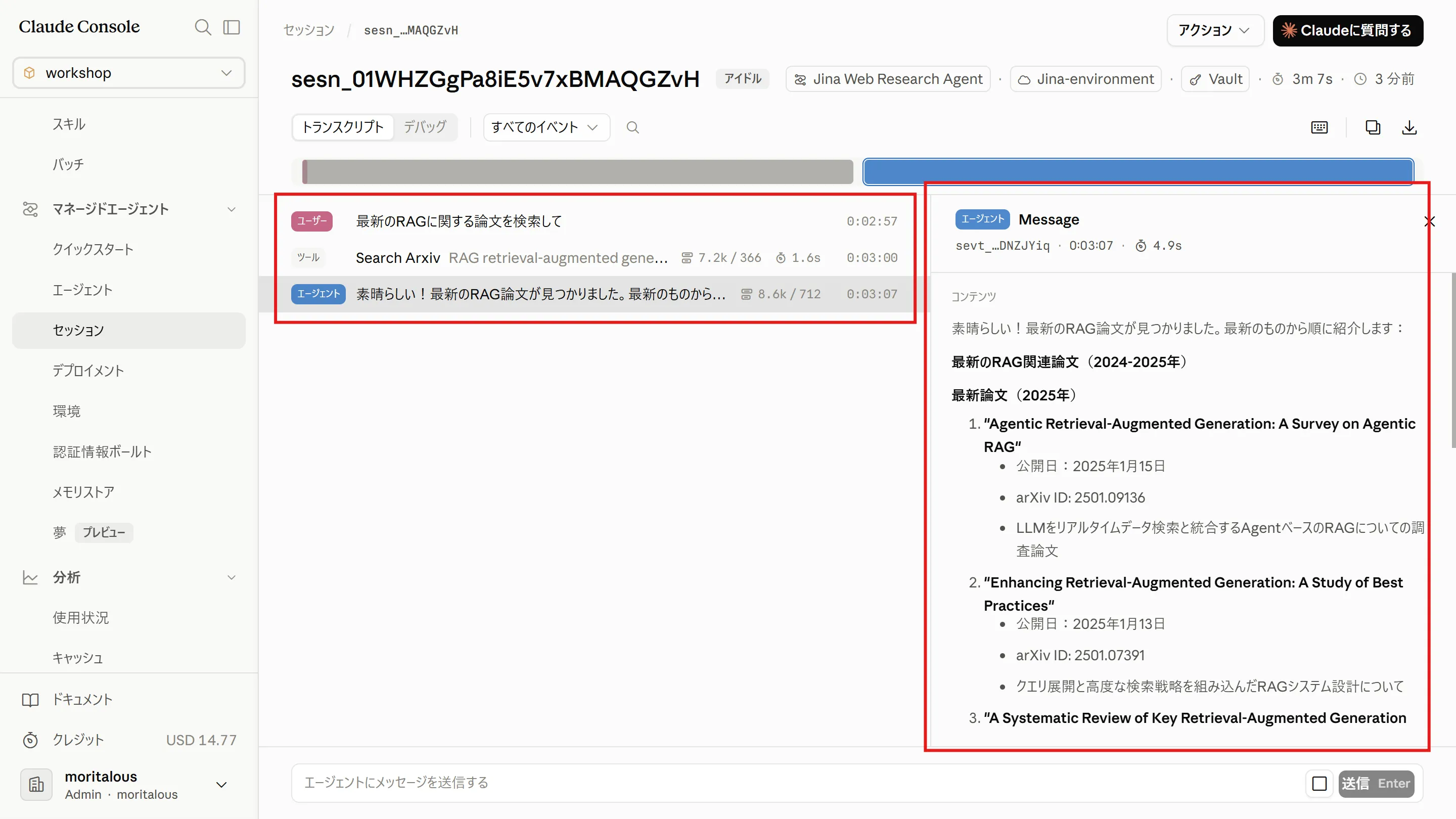
Once finished, you can simply ask in chat, “Search for the latest papers on RAG,” and the agent will perform web searches, read the papers, and answer with citations.
You will create the following four components.
| Component | Role |
|---|---|
| Credential vault | A mechanism for securely storing the Jina AI API key |
| Environment | An execution environment that allows network access to the MCP server |
| Agent | The research agent itself, which uses Jina AI’s tools |
| Session | An execution unit that combines the vault, environment, and agent |
What is Jina AI?
Section titled “What is Jina AI?”Jina AI is a service that provides search infrastructure APIs for LLMs, such as web search and page reading. It offers an official remote MCP server (https://mcp.jina.ai/v1, repository: jina-ai/MCP), which lets agents call tools such as:
search_web- Search the entire websearch_arxiv/search_ssrn- Search academic papersread_url- Read a web page as Markdownparallel_read_url- Read multiple URLs in parallel
In total, about 20 tools are available, including image search and PDF extraction. You can get an API key for free without registering a credit card, and the free token allowance is enough to complete this hands-on exercise.
1. Get a Jina AI API Key
Section titled “1. Get a Jina AI API Key”-
Go to https://jina.ai/.
-
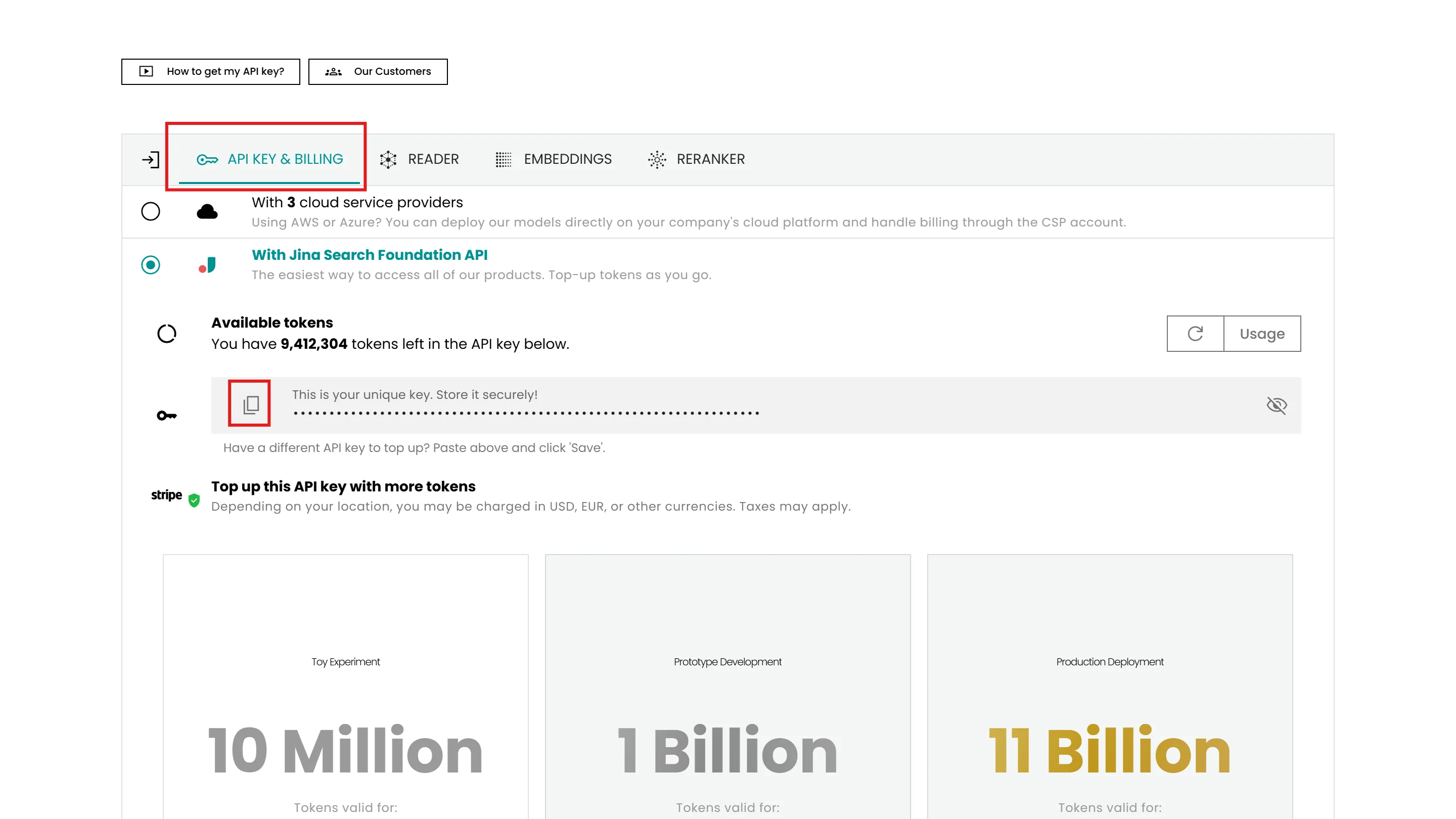
Scroll down to the middle of the page and click the “API KEY & BILLING” tab. Click the copy icon to copy your API key.
2. Create a Credential Vault
Section titled “2. Create a Credential Vault”First, create a credential vault. A credential vault is a mechanism for securely storing credentials such as API keys and tokens for external services. When you specify a vault at session creation time, those credentials are used when the agent connects to the MCP server. The key benefit is that you never have to put the API key directly in the system prompt or the conversation.
-
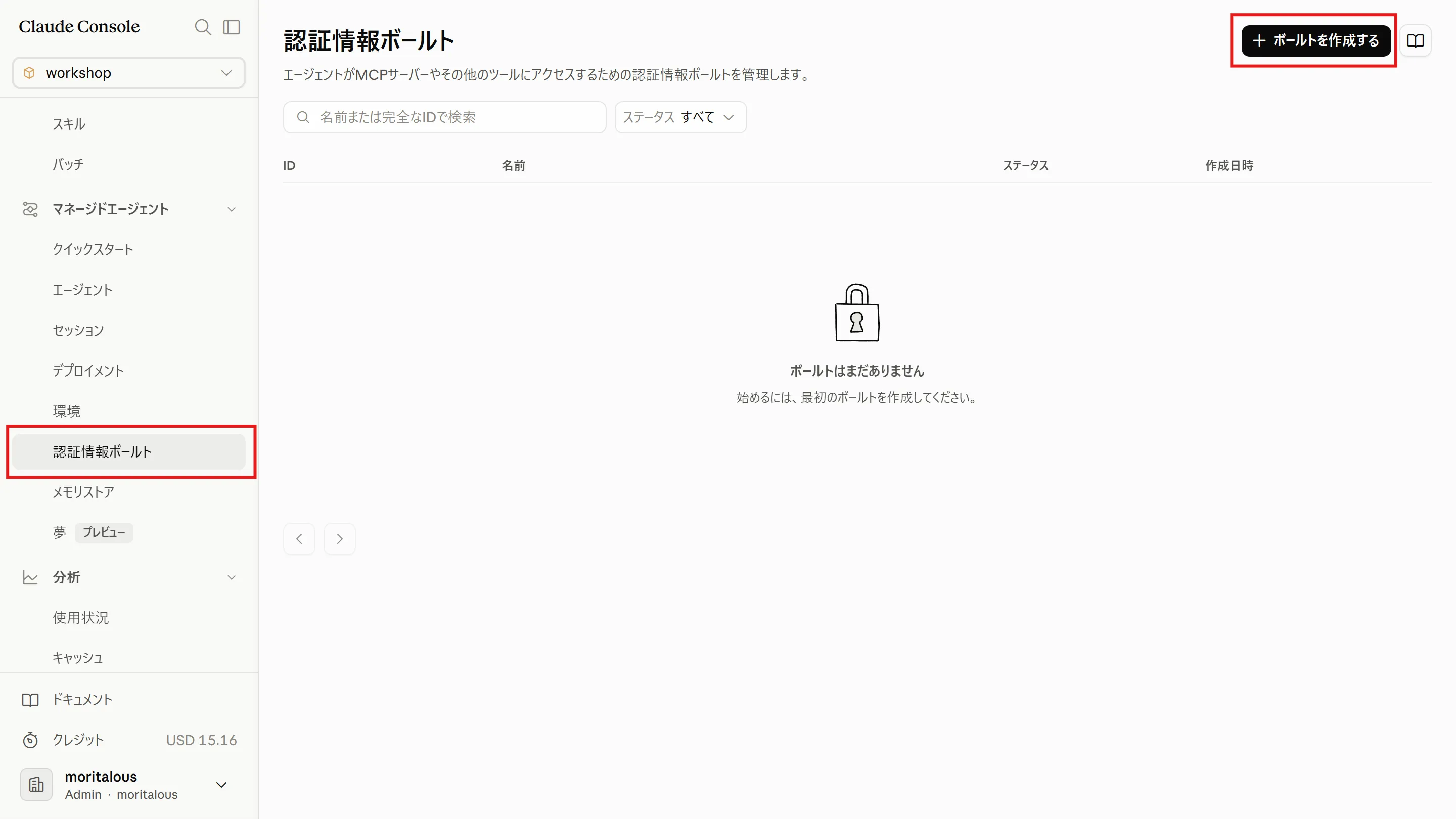
Select the “Credential vaults” menu, then click “Create vault”.
-
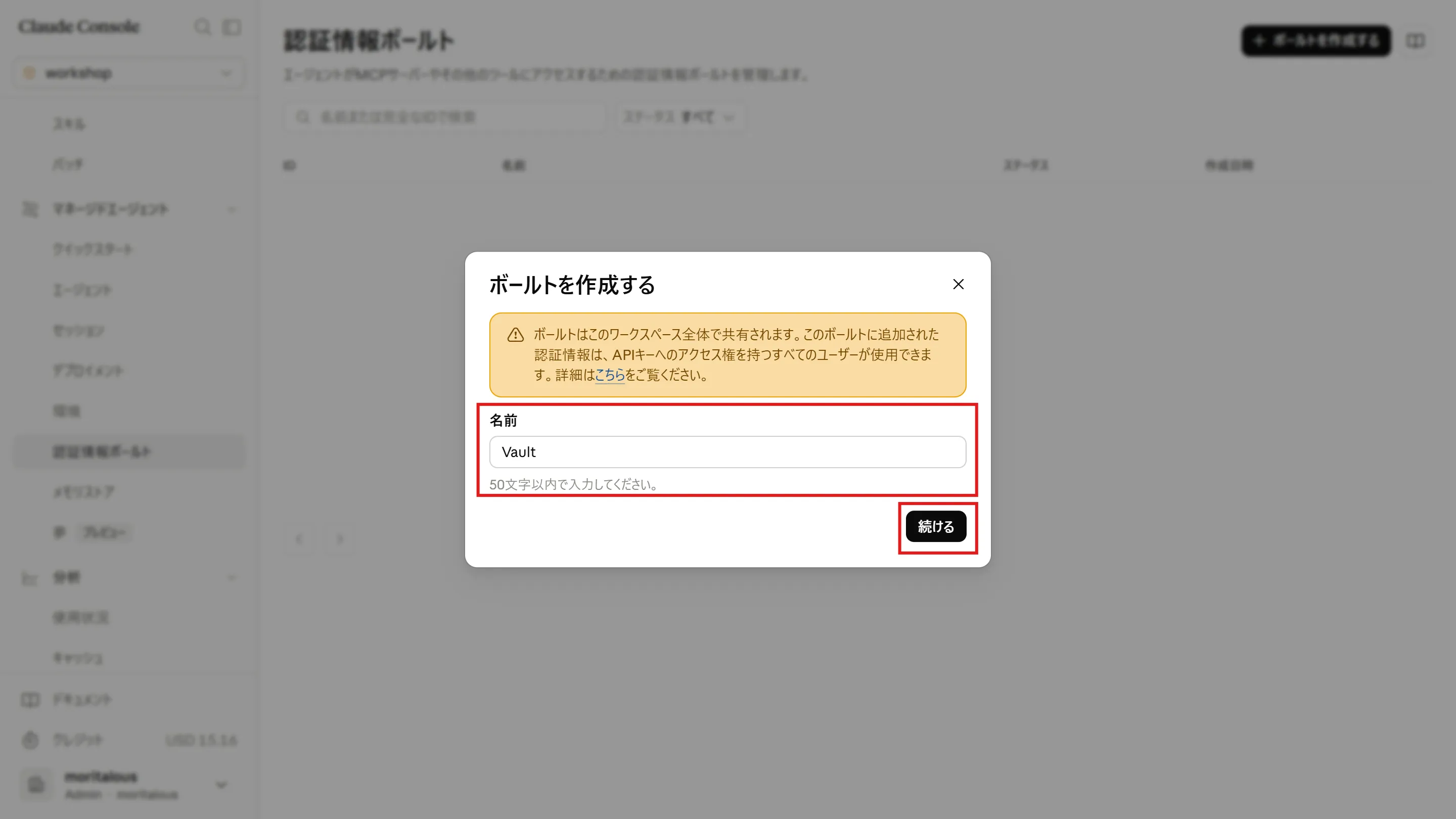
Enter “Vault” as the vault name and click “Continue”.
-
Next, add a credential. Enter “Jina-ai” as the name and select “Bearer token” as the type.
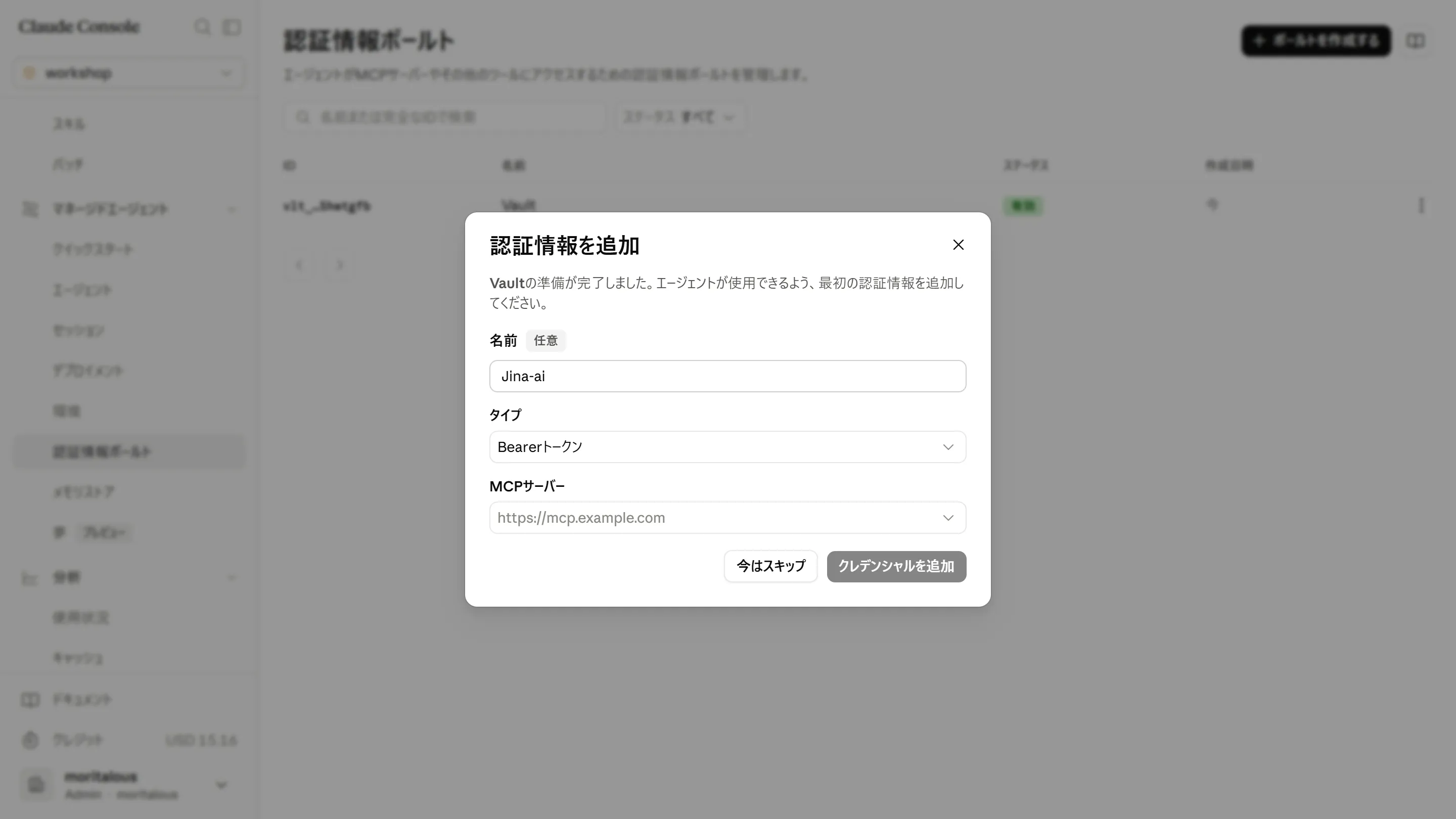
-
Click MCP server and enter “
https://mcp.jina.ai/v1” in the custom URL field.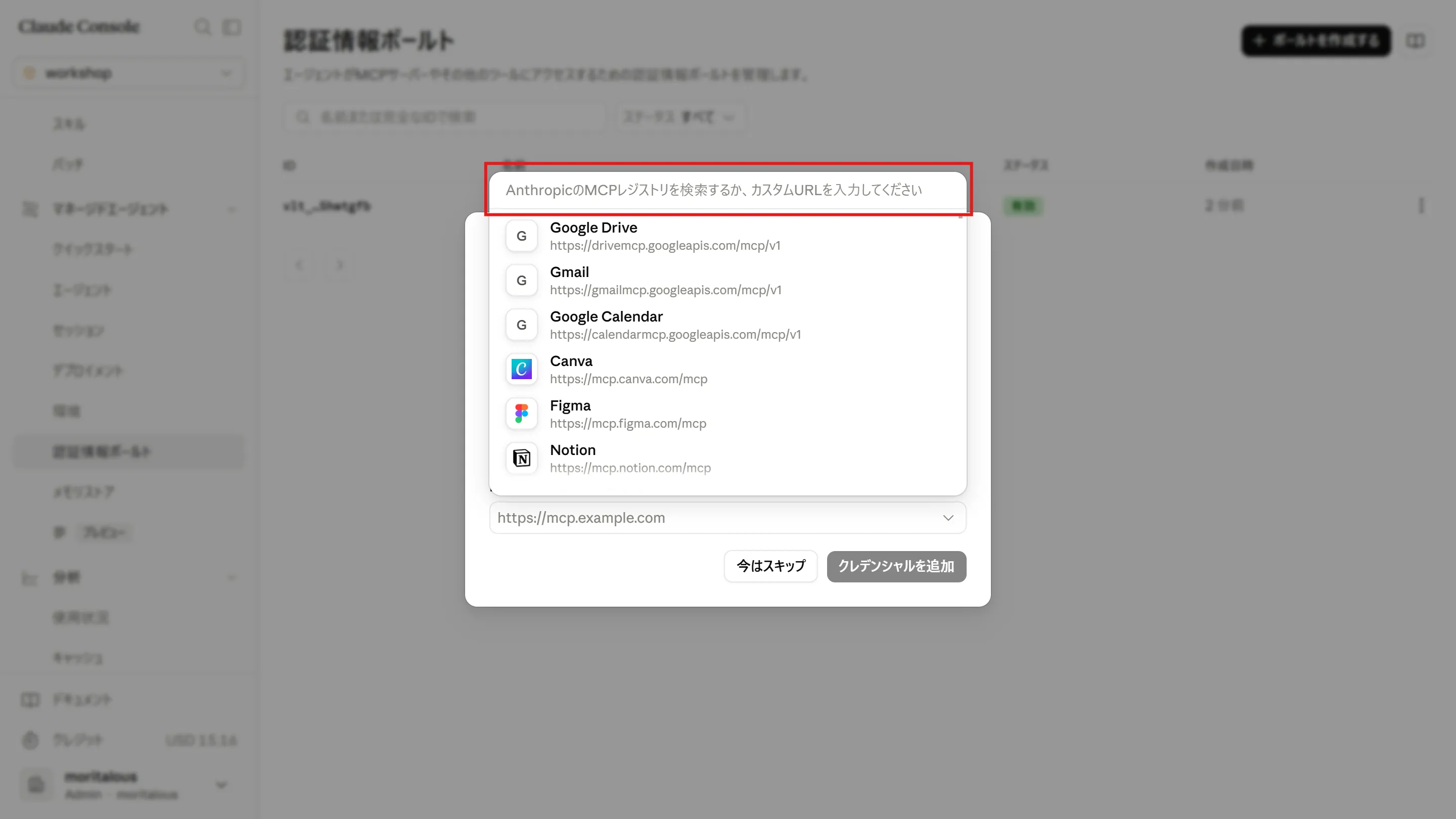
-
Click “Custom server”.
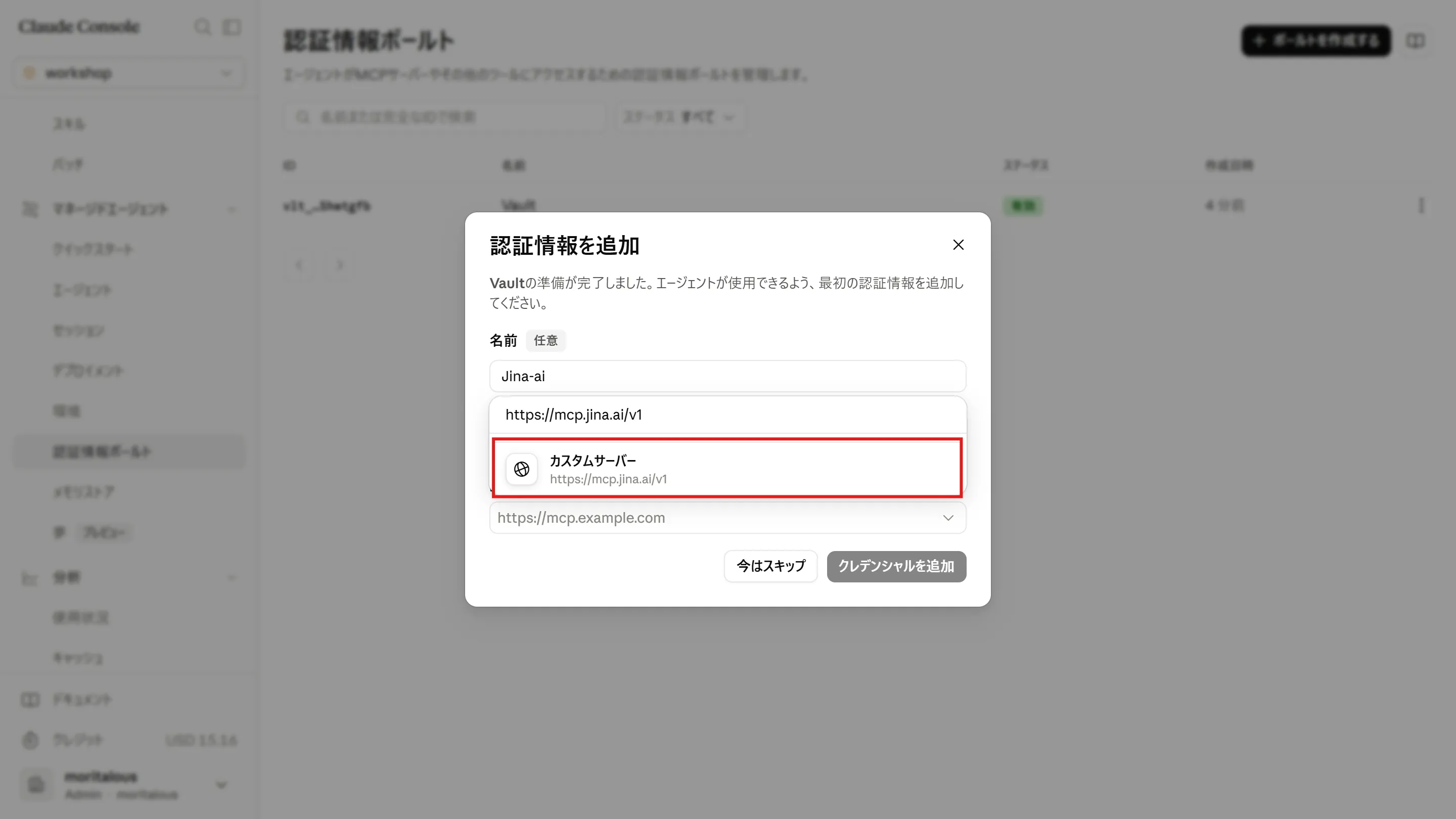
-
Enter your Jina AI API key as the token. Agree to (check) the notice about credentials, then click “Add credential”.
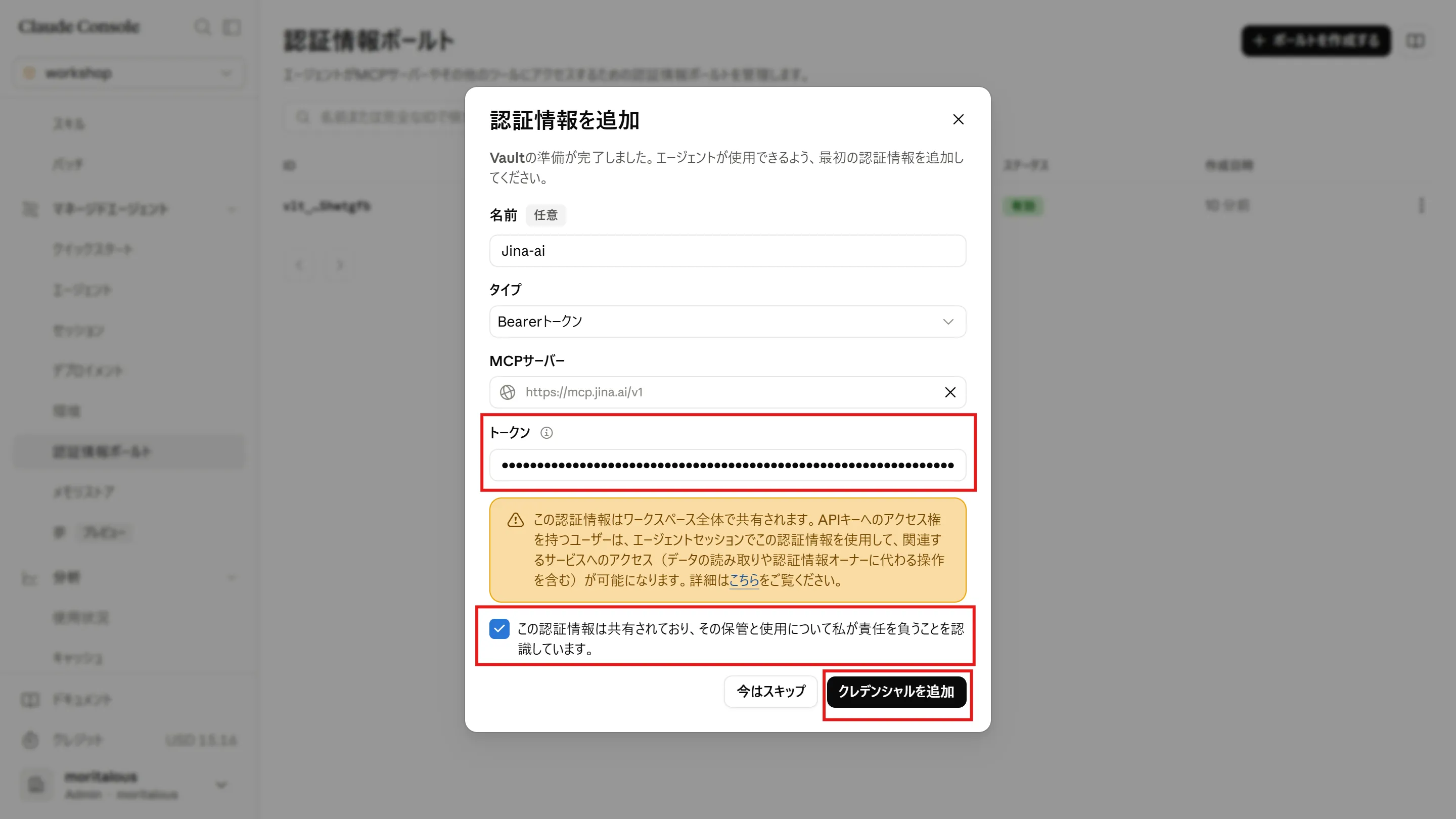
3. Create an Environment
Section titled “3. Create an Environment”-
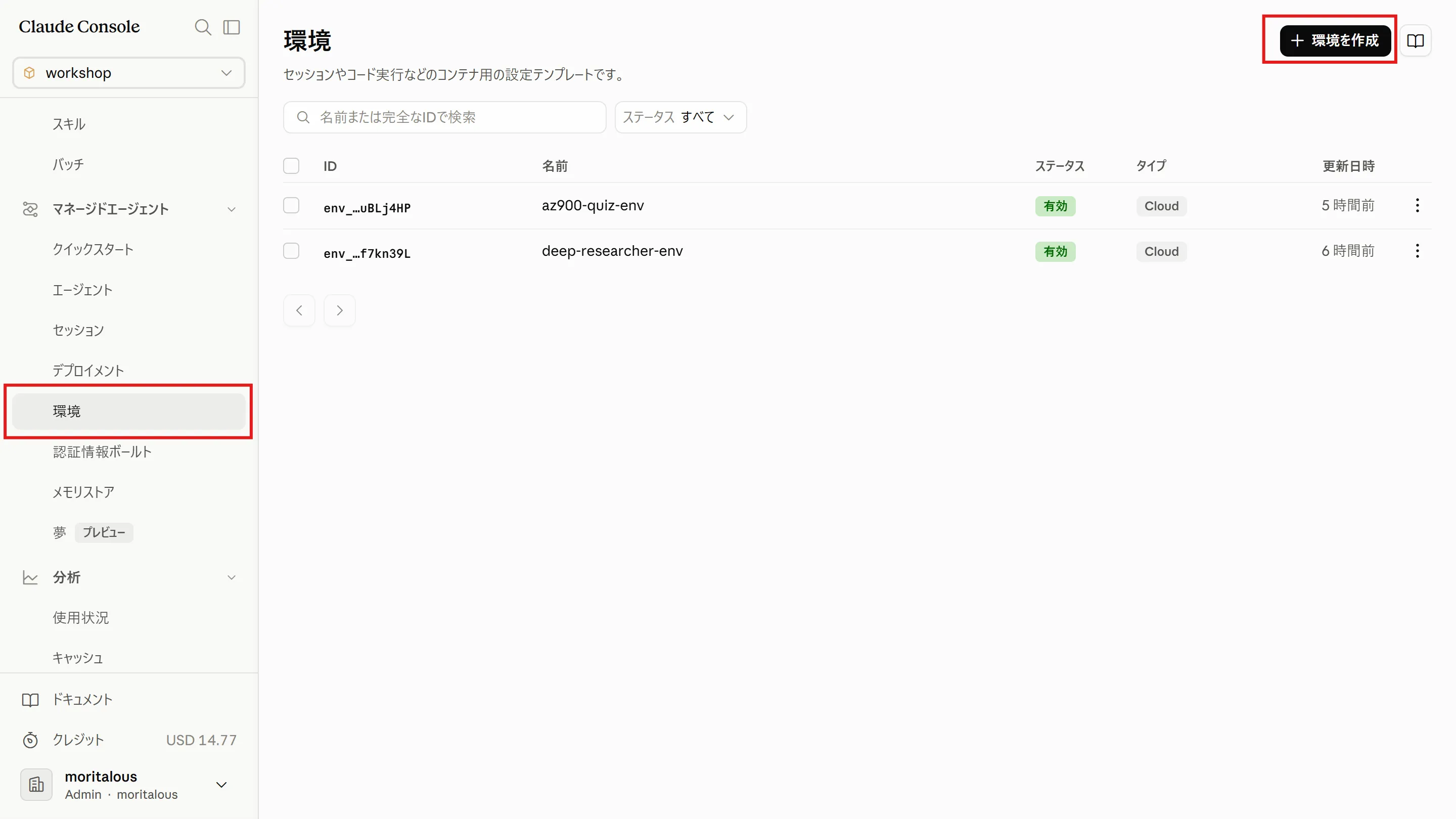
Select the “Environments” menu, then click “Create environment”.
-
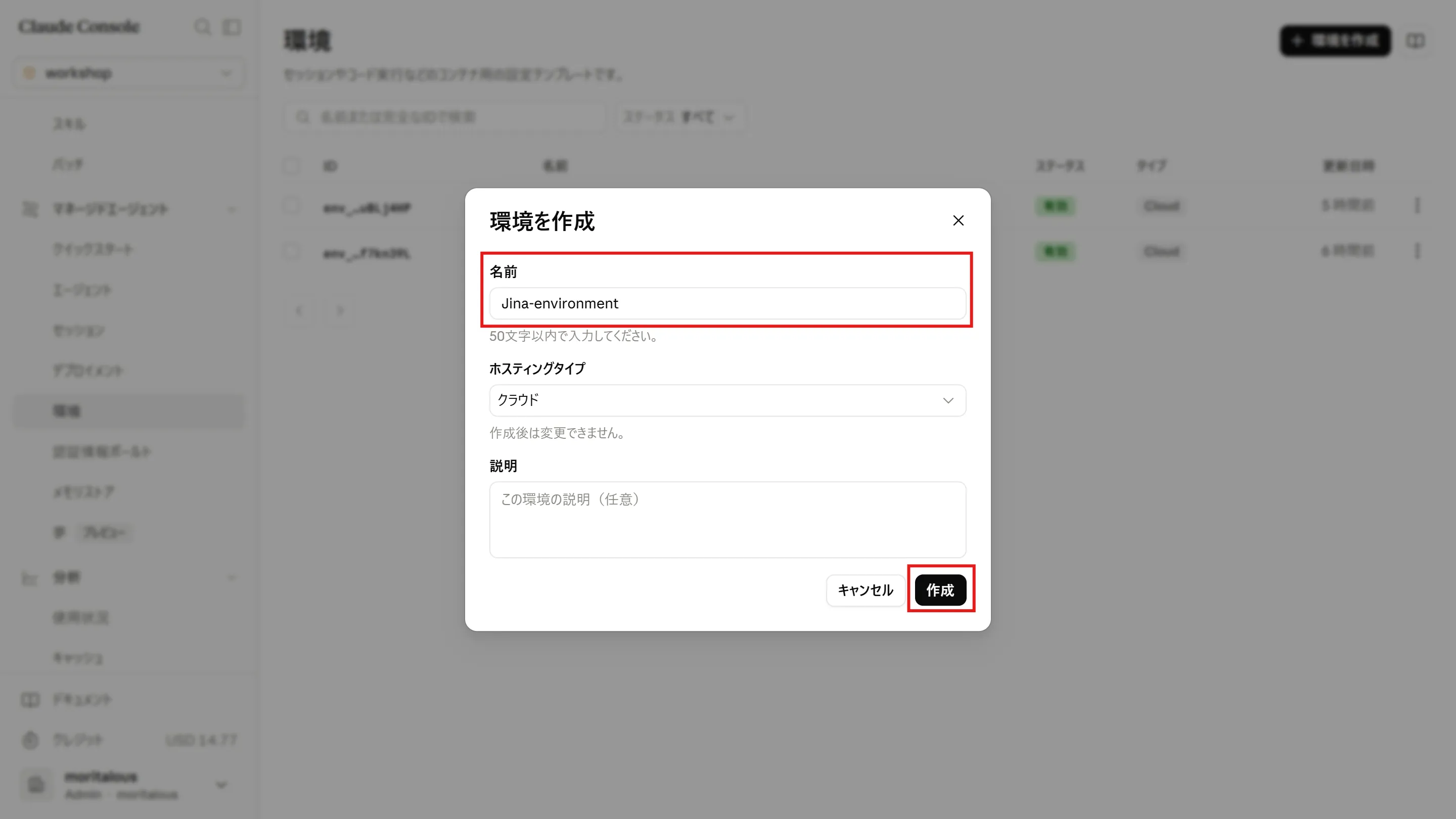
Enter “Jina-environment” as the name and click “Create”.
-
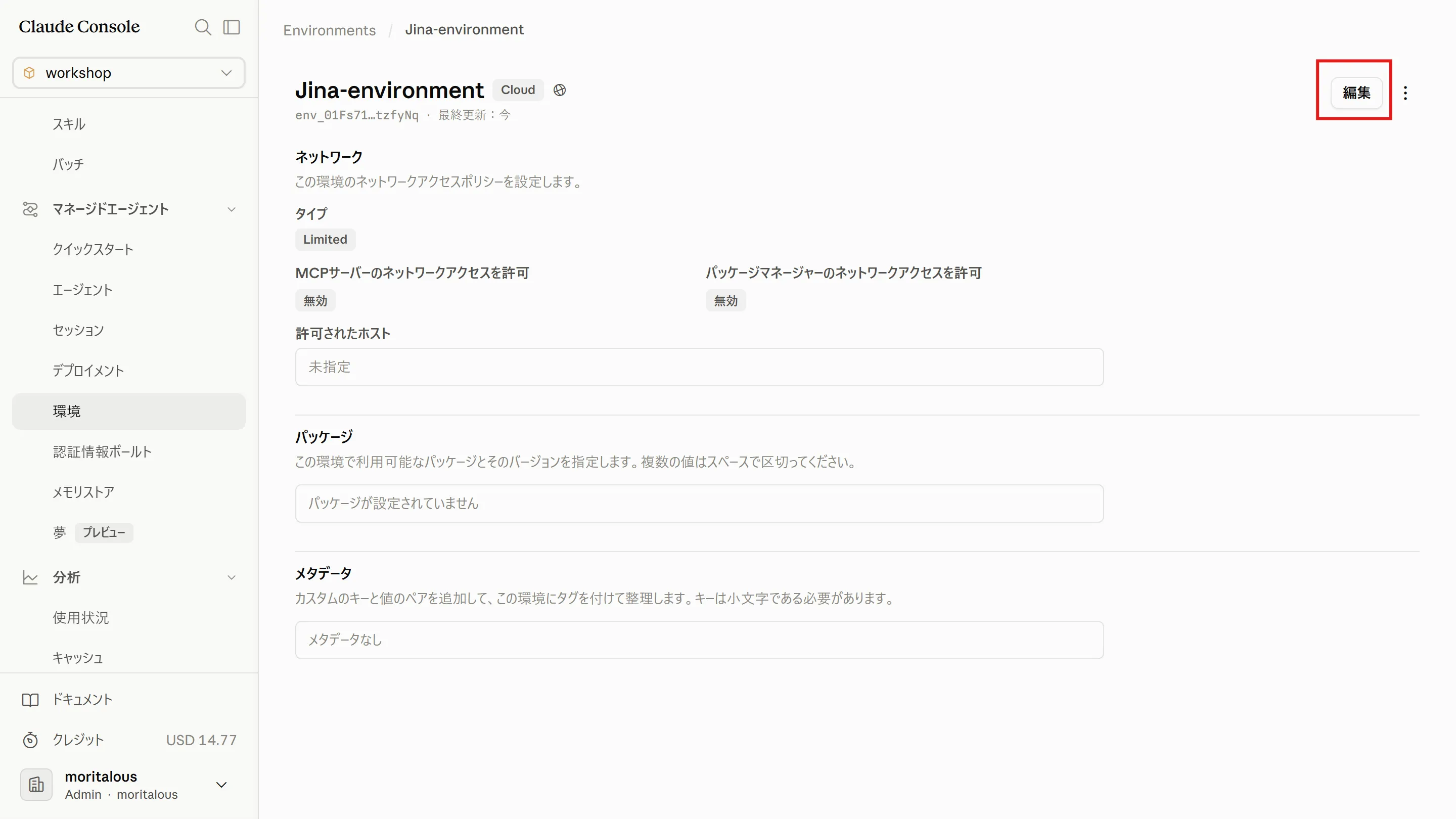
Click “Edit”.
-
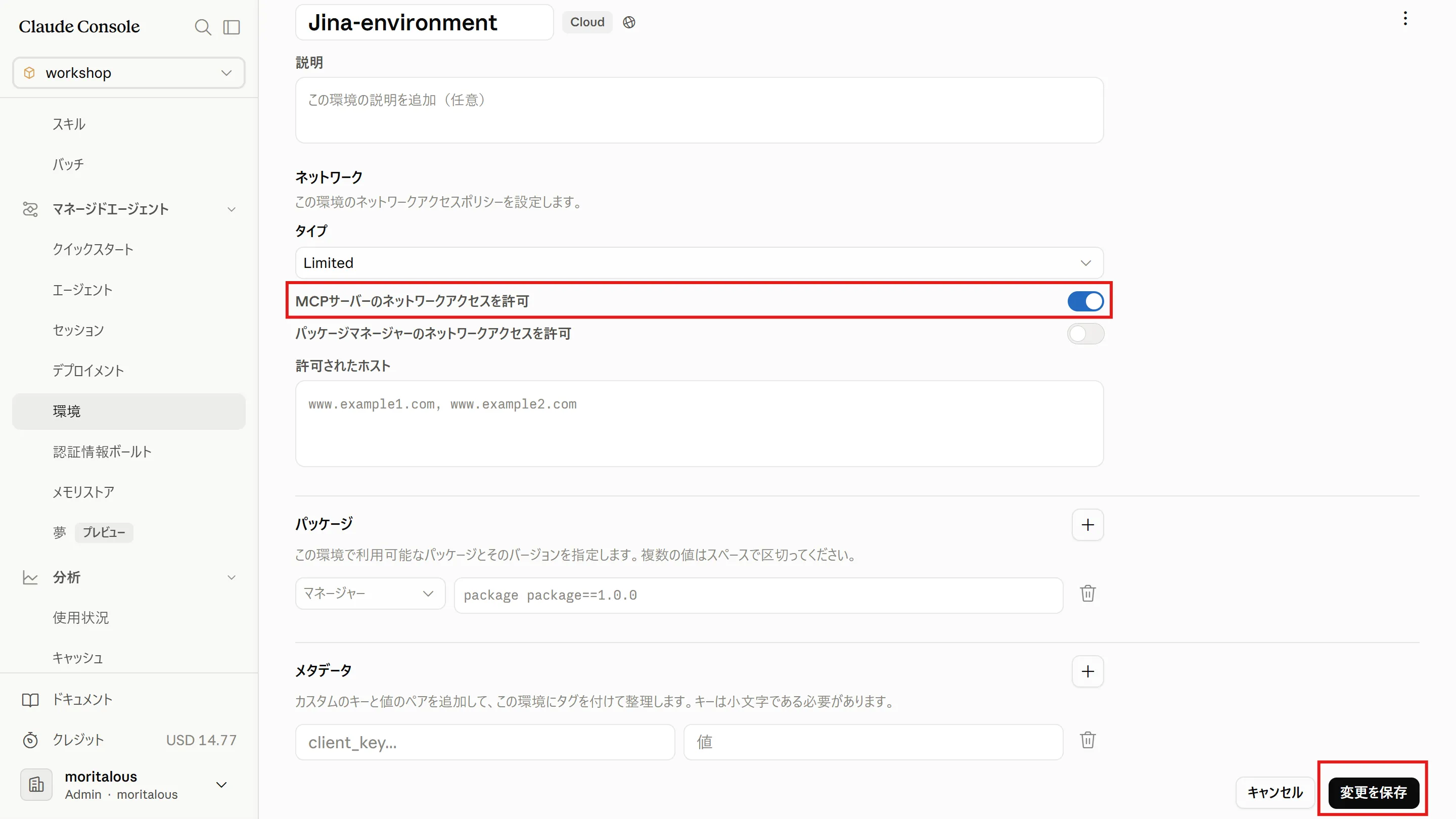
Check “Allow network access for MCP servers” and click “Save changes”.
4. Create an Agent
Section titled “4. Create an Agent”-
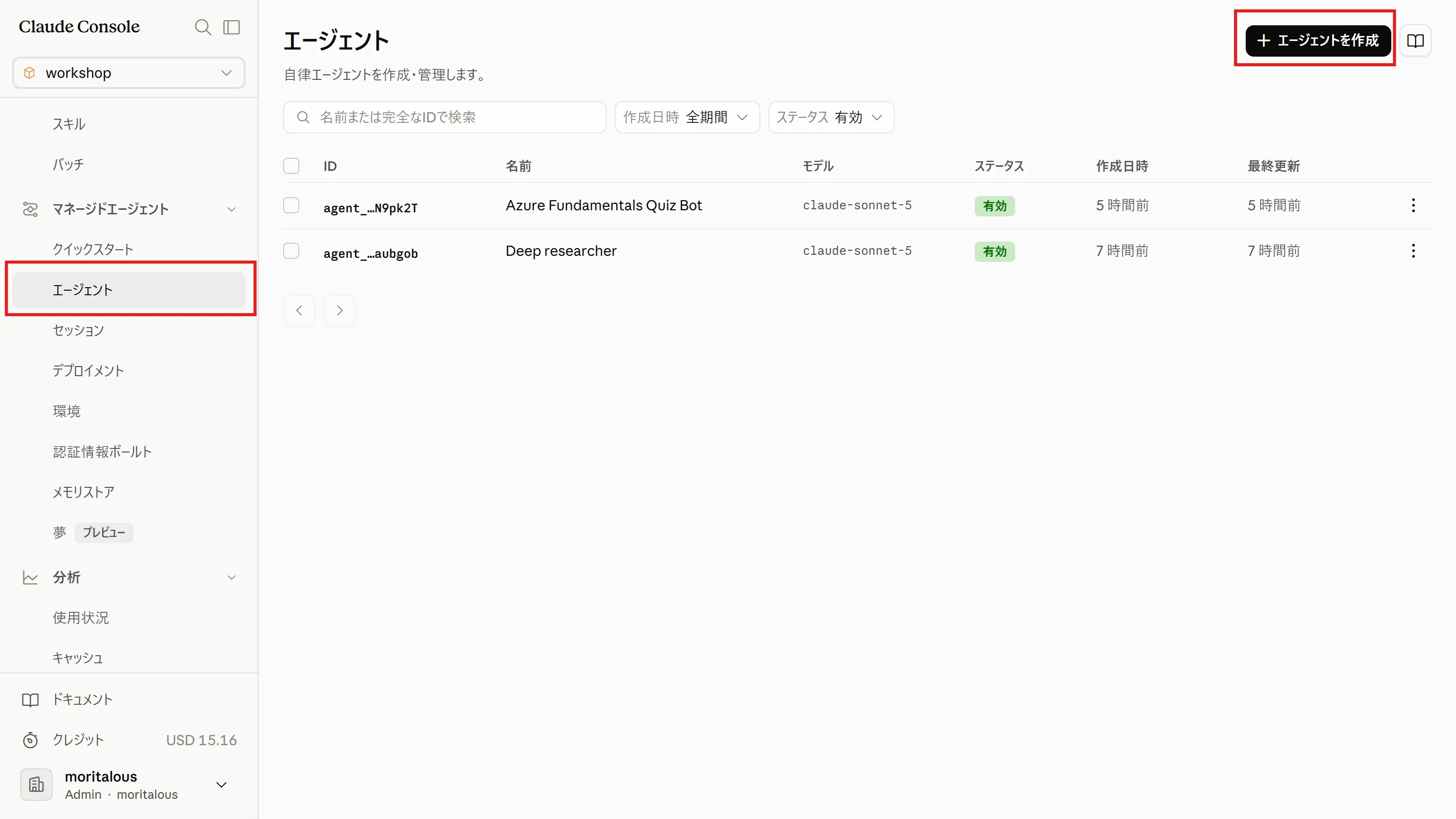
Select the “Agents” menu, then click “Create agent”.
-
Enter the following YAML in the agent configuration field and click “Create agent”.
name: Jina Web Research Agentmodel:id: claude-haiku-4-5speed: standarddescription: A demo agent for web search, page reading, and academic research using the Jina AI MCP server.system: You are a research assistant that leverages Jina AI's search and reading tools. When you receive a question, use search_web (or search_arxiv / search_ssrn for academic topics) to find relevant sources, then use read_url or parallel_read_url to fetch the full text of the most promising results. Do not rely solely on search result snippets. Combine information from multiple sources, cite the URLs you used, and clearly indicate any uncertainty or conflicting information. For efficiency, prefer the parallel_* tools when searching or reading multiple sources at once. When asked to summarize or extract facts from a specific page, read that page directly with read_url. Keep your answers concise and well organized, and base them on the retrieved content rather than prior knowledge.mcp_servers:- name: jinatype: urlurl: https://mcp.jina.ai/v1tools:- configs: []default_config:enabled: truepermission_policy:type: always_allowmcp_server_name: jinatype: mcp_toolsetskills: []metadata: {}
5. Create a Session
Section titled “5. Create a Session”-
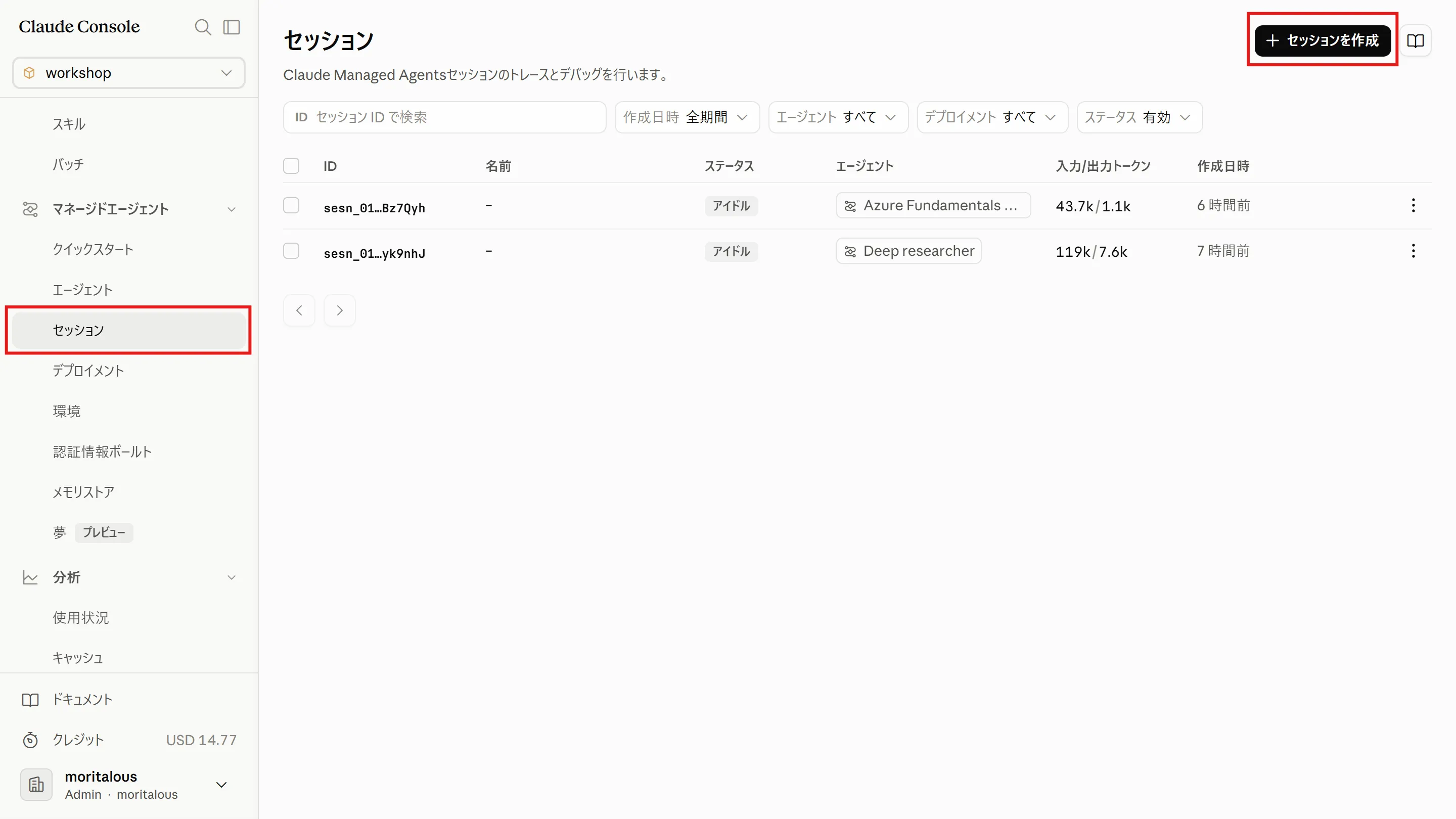
Select the “Sessions” menu, then click “Create session”.
-
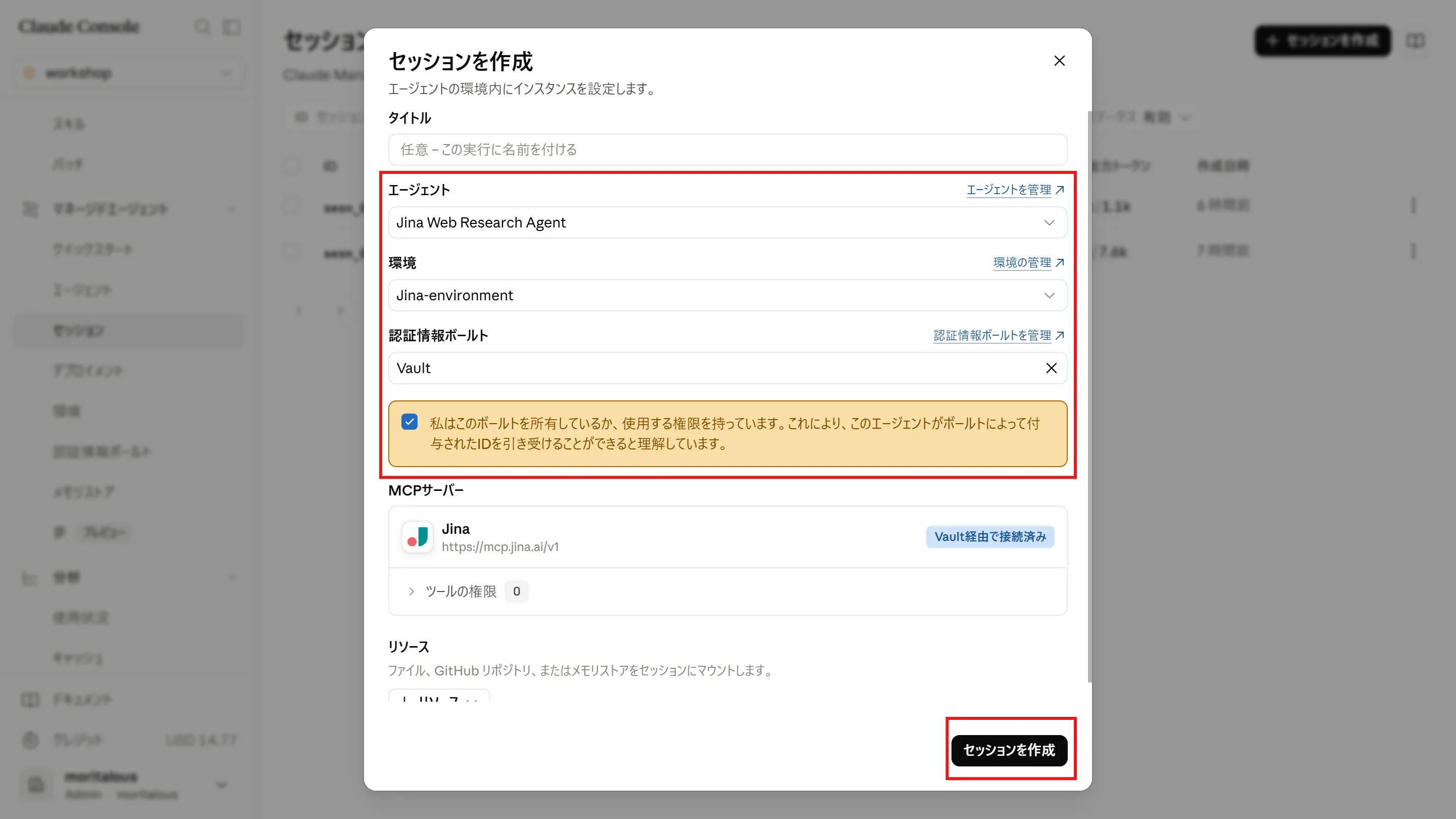
Set the agent to “Jina Web Research Agent”, the environment to “Jina-environment”, and the credential vault to “Vault”, then check the notice checkbox. Click “Create session”.
6. Invoke the Agent
Section titled “6. Invoke the Agent”-
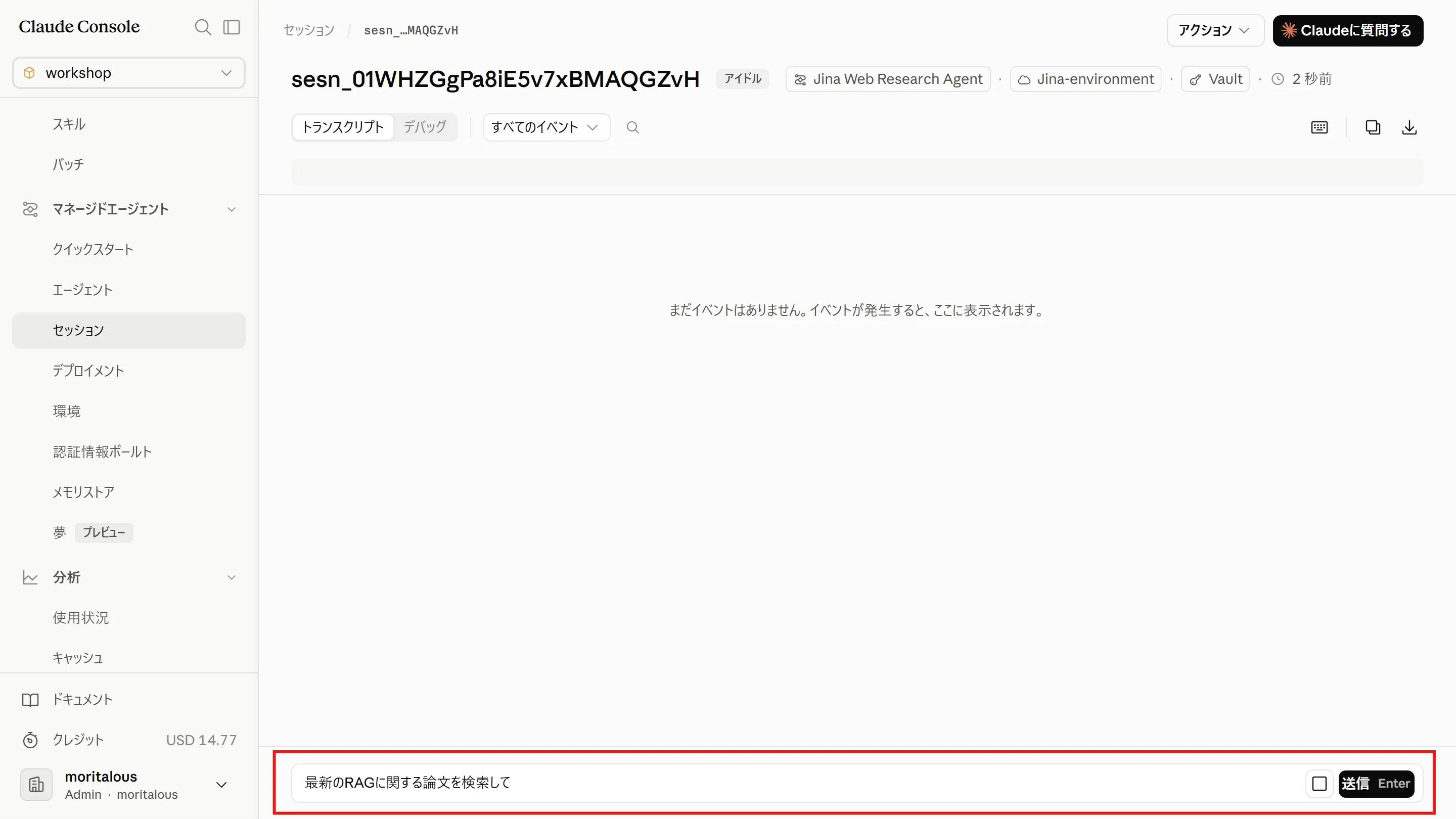
Type something like “Search for the latest papers on RAG” in the chat box and send it.
-
The agent retrieves information via the MCP server and returns an answer.
Summary
Section titled “Summary”- Store secrets such as API keys in a credential vault and attach it when creating a session. This keeps keys out of your system prompt and conversation.
- Using an MCP server requires three things: (1) a credential in the vault (one per endpoint URL), (2) network access to MCP servers enabled in the environment, and (3)
mcp_serversandmcp_toolsetdefinitions on the agent. - Assembling the building blocks of environment, agent, and session (plus a vault when needed) is the basic pattern of Managed Agents. On the following pages, we will build the same setup with the CLI and the SDK.
Great work! Please share your thoughts so far in a post on X.
Share your thoughts on X