3. An Agent That Works with Gmail
Besides the “Bearer token” type you used in 1. Create an Agent in the Console, credentials you add to a vault can also be of the “MCP OAuth” type. This type is for MCP servers that use OAuth authentication, and the console provides presets such as Gmail (https://gmailmcp.googleapis.com/mcp/v1).
On this page, you will build an agent that creates Gmail drafts for you. Along the way, you will also experience the permission policy (always_ask), which asks the user for approval before a tool runs.
1. “Connect” Gmail in the Console
Section titled “1. “Connect” Gmail in the Console”Unlike a Bearer token, with an MCP OAuth preset the console handles the OAuth authorization flow for you.
-
Open your vault under “Credential Vault” and click “Add credential”.
-
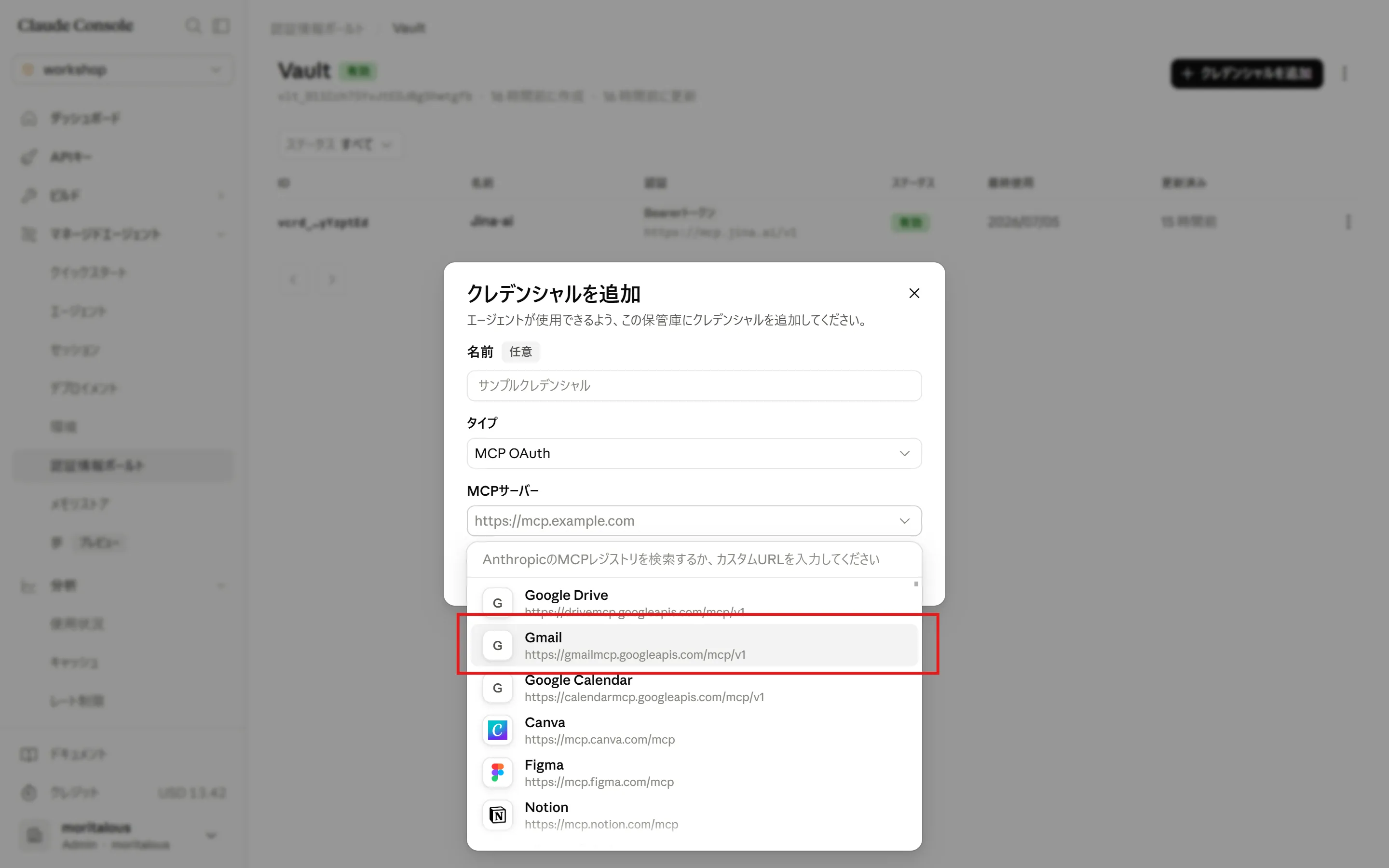
Select “MCP OAuth” as the type, then choose “Gmail” from the MCP server presets.
-
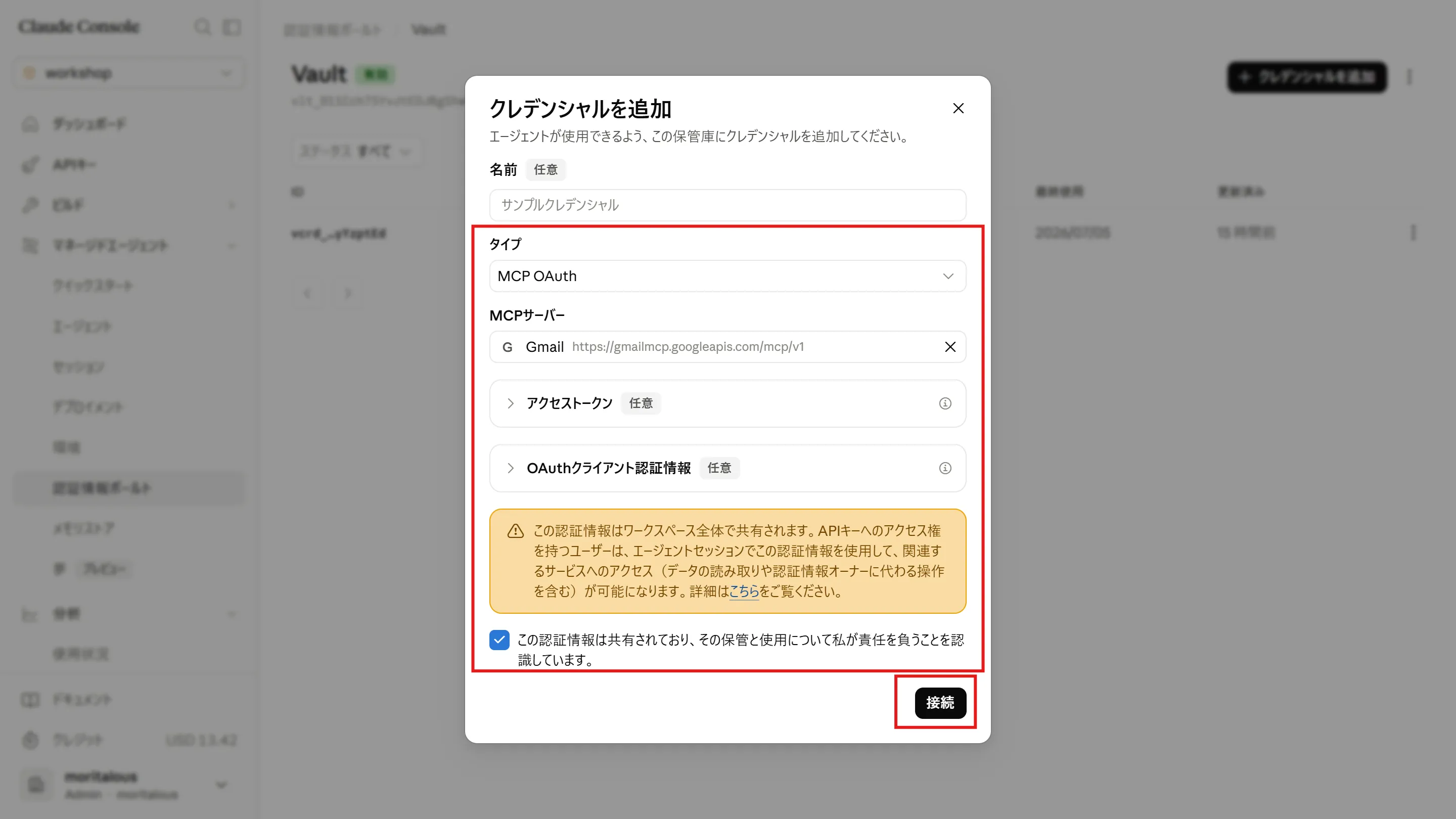
Accept the notice and click “Connect”; Google’s authorization screen opens. Choose your account and grant access.
-
The token is stored in the vault. Anthropic also refreshes it automatically when it expires.
2. Create a Project
Section titled “2. Create a Project”Create a project, move into its folder, and install the Claude SDK.
uv init gmail-agentcd gmail-agentuv add anthropic3. Create the Agent
Section titled “3. Create the Agent”-
Create
setup_gmail.pyin the project folder and save the following content.setup_gmail.py import jsonfrom anthropic import Anthropicclient = Anthropic()################################ 1. Find the vault that holds the Gmail credential###############################gmail_vault_id = Nonefor vault in client.beta.vaults.list():for cred in client.beta.vaults.credentials.list(vault_id=vault.id):url = getattr(cred.auth, "mcp_server_url", "") or ""if "gmailmcp.googleapis.com" in url:gmail_vault_id = vault.idprint(f"Found Gmail credential: vault={vault.id} ({vault.display_name}) / credential={cred.id}")breakif gmail_vault_id:breakif not gmail_vault_id:raise SystemExit("Gmail credential not found. Click \"Connect\" in the console's vault first.")################################ 2. Create an environment (allow network access to MCP servers)###############################environment = client.beta.environments.create(name="Gmail-environment",config={"type": "cloud","networking": {"type": "limited", "allow_mcp_servers": True},},)print(f"environment: {environment.id}")################################ 3. Create the agent (permission policy is always_ask = require approval before execution)###############################agent = client.beta.agents.create(name="Gmail Agent",model={"id": "claude-haiku-4-5", "speed": "standard"},description="An agent that searches, summarizes, and drafts Gmail messages.",system="You are an assistant that works with Gmail. When summarizing an email, concisely cover the sender, subject, and key points. Respond in English.",mcp_servers=[{"name": "gmail", "type": "url", "url": "https://gmailmcp.googleapis.com/mcp/v1"}],tools=[{"type": "mcp_toolset","mcp_server_name": "gmail","default_config": {"enabled": True,"permission_policy": {"type": "always_ask"},},}],)print(f"agent: {agent.id}")with open("ids_gmail.json", "w") as f:json.dump({"vault_id": gmail_vault_id,"environment_id": environment.id,"agent_id": agent.id,},f,indent=2,)print("Saved IDs to ids_gmail.json")There are two key points here.
- Automatic vault discovery — the script lists vaults and their credentials, looking for a vault that contains a credential with the Gmail MCP server URL. This shows that a credential created from the console in step 1 can be referenced from code just like any other credential
permission_policy: always_ask— unlike thealways_allowwe used so far, this setting makes the session pause and ask for approval before the agent runs a tool. Since we are dealing with real email data, we err on the side of safety
-
Run the script.
Terminal window uv run setup_gmail.pyFound Gmail credential: vault=vlt_011Cch75YvJtEDJBgShwtgfb (Vault) / credential=vcrd_01Cwkza...environment: env_01RcwVQvCdgfidJqSN32Ypuaagent: agent_01Rs4ReLgJkee8xkX18MdxppSaved IDs to ids_gmail.json
4. Talk to the Agent
Section titled “4. Talk to the Agent”-
Create
run_gmail.pyin the project folder and save the following content.run_gmail.py import jsonfrom anthropic import Anthropicclient = Anthropic()with open("ids_gmail.json") as f:ids = json.load(f)################################ 1. Create a session (combine the agent, environment, and Gmail vault)###############################session = client.beta.sessions.create(agent=ids["agent_id"],environment_id=ids["environment_id"],vault_ids=[ids["vault_id"]],)print(f"session: {session.id}")print("Chatting with the agent. Type exit to quit.\n")################################ 2. Send and receive one turn (confirm with y/N when approval is required)###############################def run_turn(text: str) -> None:pending_tools = {} # event_id -> (tool name, arguments)# Open the stream before sending the messagestream = client.beta.sessions.events.stream(session_id=session.id)client.beta.sessions.events.send(session.id,events=[{"type": "user.message", "content": [{"type": "text", "text": text}]}],)for event in stream:if event.type == "agent.mcp_tool_use":if getattr(event, "evaluated_permission", None) == "ask":# This tool call needs approval. Remember its IDpending_tools[event.id] = (event.name, event.input)else:print(f"[tool: {event.name}]")elif event.type == "agent.message":for block in event.content:if block.type == "text":print(block.text)elif event.type == "session.status_idle":if event.stop_reason.type == "requires_action":# Waiting for approval. Show the tool call and ask the userfor event_id in event.stop_reason.event_ids:name, tool_input = pending_tools.get(event_id, ("(unknown)", {}))print("\n----- Approval request -----")print(f"Tool: {name}")print(f"Arguments: {json.dumps(tool_input, ensure_ascii=False, indent=2)}")answer = input("Allow this call? [y/N] ").strip().lower()confirmation = {"type": "user.tool_confirmation","tool_use_id": event_id,"result": "allow" if answer == "y" else "deny",}if answer != "y":confirmation["deny_message"] = "The user denied this call."client.beta.sessions.events.send(session.id, events=[confirmation])print("Response sent. Continuing...\n")else:breakelif event.type == "session.status_terminated":print("The session has terminated.")raise SystemExit(1)stream.close()################################ 3. Send the first task, then keep the conversation going###############################run_turn("Create a Gmail draft addressed to myself with the subject \"Checking tomorrow's schedule\". ""Keep the body short — I'll leave the wording to you. Do not send it. ""If anything is unclear, such as the recipient's email address, ask me.")while True:user_input = input("\nYou> ").strip()if user_input == "exit":breakif not user_input:continuerun_turn(user_input)print("\nDone") -
Run the script. When the agent asks you a question, answer at the
You>prompt; when an approval request appears, inspect the arguments first, then allow it withy.Terminal window uv run run_gmail.pysession: sesn_01WCk8w6uAJPuoP7QG32G4trChatting with the agent. Type exit to quit.I'd be happy to create the draft, but there's one thing I need to confirm:**Could you tell me your email address?**You> your email address----- Approval request -----Tool: create_draftArguments: {"body": "Hi,\n\nI have a few things I'd like to confirm about tomorrow's schedule. ...","subject": "Checking tomorrow's schedule","to": ["your email address"]}Allow this call? [y/N] yResponse sent. Continuing...Done! I've created the email draft titled "Checking tomorrow's schedule".You> exit -
Open Gmail’s “Drafts” folder and you will find the draft the agent created. You can confirm it has the same subject and body that were shown in the approval request.
Summary
Section titled “Summary”- The vault’s “MCP OAuth” type comes with presets such as Gmail, and the console’s “Connect” button handles OAuth authorization plus token storage and refresh for you.
- Credentials created in the console can be referenced from code just like any other credential (a natural division of labor: create OAuth credentials by clicking “Connect” in the console, then reference them from code by vault ID).
- With
always_ask, each tool execution involves a round trip:agent.mcp_tool_use(awaiting approval) →user.tool_confirmation(allow/deny). You get to inspect the payload before it runs for operations that touch real data. - When handling credentials for a personal account like Gmail, keep the workspace-wide sharing behavior in mind.
Great work! Please share your thoughts so far in a post on X.
Share your thoughts on X