2. Create an Agent with the CLI
In this section, we will create an agent using ant, the Claude Platform CLI. We will recreate the same setup you built from the UI in 1. Create an Agent in the Console (environment → agent → session), entirely with ant commands.
1. Set up the ant environment
Section titled “1. Set up the ant environment”-
Install ant.
-
From the
antreleases page, downloadant_{version}_windows_amd64.zip. -
Extract it to any location.
-
Launch
powershell.exein the extracted folder. -
Set the character encoding to UTF-8 so that non-ASCII text in command output does not get garbled.
Terminal window $OutputEncoding = [Console]::OutputEncoding = New-Object System.Text.UTF8Encoding $false
- Open a terminal and run the following command.
Terminal window brew install anthropics/tap/ant
-
-
Run
ant auth login.- Run the following command.
Terminal window ./ant auth login
- Run the following command.
Terminal window ant auth login
- Run the following command.
-
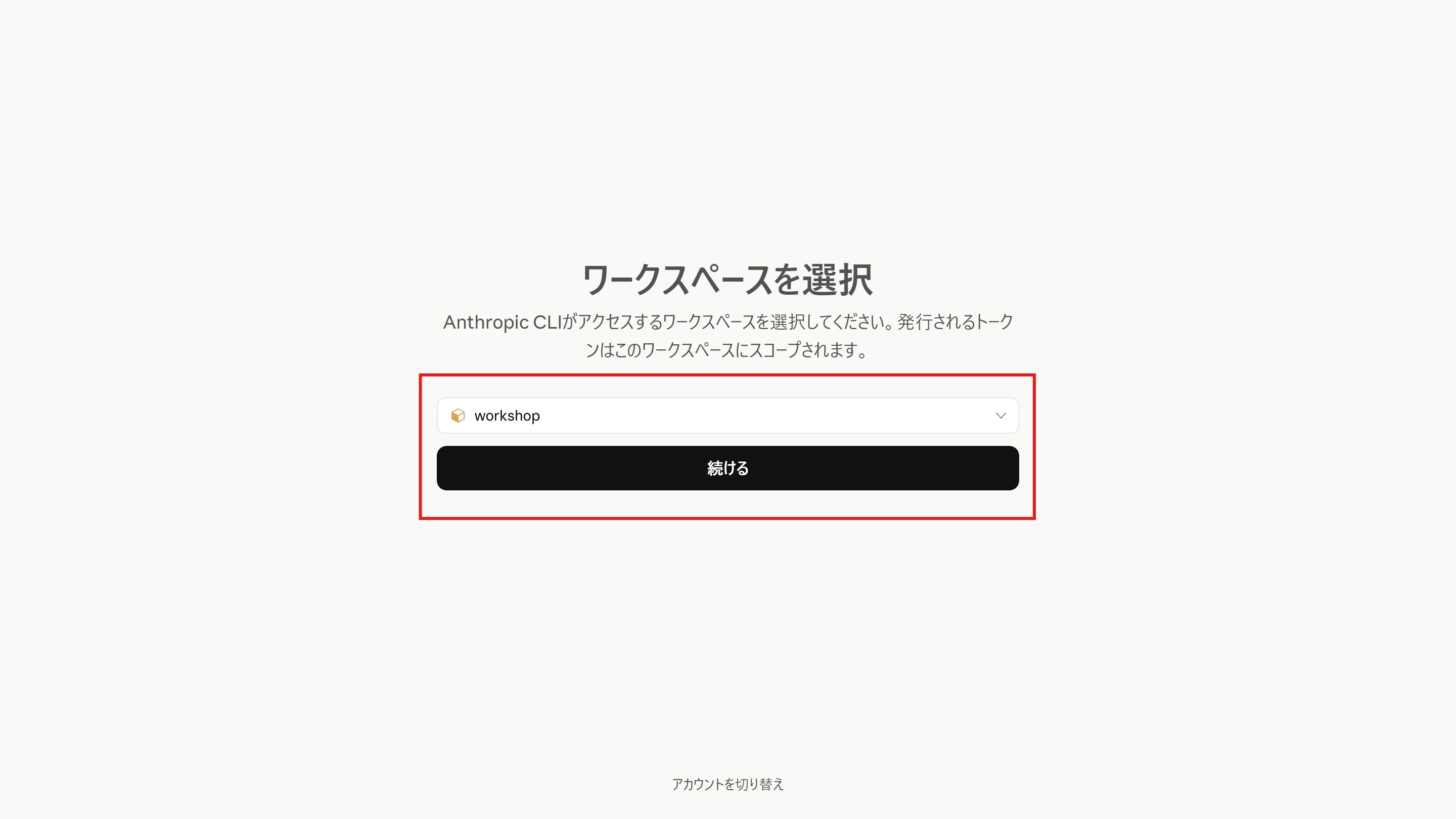
Log in via your browser.
2. Create an environment
Section titled “2. Create an environment”To avoid name collisions with the console version, the CLI version’s names end with “-cli”.
-
Create an environment that allows network access to MCP servers, and save its ID in a variable (the command is a single line).
Terminal window $ENVIRONMENT_ID = ./ant beta:environments create --name "Quiz-environment-cli" --config '{type: cloud, networking: {type: limited, allow_mcp_servers: true}}' --transform id --raw-outputTerminal window ENVIRONMENT_ID=$(ant beta:environments create --name "Quiz-environment-cli" --config '{type: cloud, networking: {type: limited, allow_mcp_servers: true}}' --transform id --raw-output)Print the variable and confirm it holds an ID starting with
env_.Terminal window $ENVIRONMENT_IDTerminal window echo "$ENVIRONMENT_ID"
3. Create an agent
Section titled “3. Create an agent”-
In the folder where you are running the commands, create a file named
agent.yamlwith the following contents.agent.yaml name: AZ-900 Quiz Agent CLImodel:id: claude-haiku-4-5speed: standarddescription: A study assistant that asks AZ-900 (Azure Fundamentals) practice questions using up-to-date information from the Microsoft Learn MCP server.system: |-You are a study assistant that creates AZ-900 (Azure Fundamentals) practice questions using the Microsoft Learn MCP server. Refer to the latest official Microsoft Learn documentation and ask multiple-choice questions one at a time.Rules:- After presenting the question and the options, do not reveal the correct answer until the user responds.- After the user answers, say whether they were right and give a one-line explanation of why each option is correct or incorrect.- Provide three real Microsoft Learn documentation URLs that are useful for further study.- Remember the user's previous answers (correct/incorrect, topic) within the conversation and prioritize topics they got wrong or are weak in for the next question.- Ask only one question at a time and keep a brisk pace.mcp_servers:- name: microsoft-learntype: urlurl: https://learn.microsoft.com/api/mcptools:- type: mcp_toolsetmcp_server_name: microsoft-learndefault_config:enabled: truepermission_policy:type: always_allowskills: []metadata: {} -
Create the agent from
agent.yamland save its ID in a variable.Terminal window $AGENT_ID = Get-Content agent.yaml -Raw -Encoding UTF8 | ./ant beta:agents create --transform id --raw-outputTerminal window AGENT_ID=$(ant beta:agents create --transform id --raw-output < agent.yaml)Print the variable and confirm it holds an ID starting with
agent_.Terminal window $AGENT_IDTerminal window echo "$AGENT_ID"
4. Create a session
Section titled “4. Create a session”-
Confirm that both IDs saved so far are present.
Terminal window $AGENT_ID; $ENVIRONMENT_IDTerminal window echo "$AGENT_ID"; echo "$ENVIRONMENT_ID" -
Create a session from the agent and environment IDs, and save its ID in a variable (the command is a single line). No credential vault is needed, so
--vault-idis omitted.Terminal window $SESSION_ID = ./ant beta:sessions create --agent $AGENT_ID --environment-id $ENVIRONMENT_ID --transform id --raw-outputTerminal window SESSION_ID=$(ant beta:sessions create --agent "$AGENT_ID" --environment-id "$ENVIRONMENT_ID" --transform id --raw-output)Print the variable and confirm it holds an ID starting with
sesn_.Terminal window $SESSION_IDTerminal window echo "$SESSION_ID"
5. Invoke the agent
Section titled “5. Invoke the agent”-
Use two terminals: one receives events in real time while the other sends messages. First, in the window you have been using (Terminal 1), start streaming events.
Terminal window ./ant beta:sessions:events stream --session-id $SESSION_ID --format jsonlTerminal window ant beta:sessions:events stream --session-id "$SESSION_ID" --format jsonlLeave the command running; it waits for events. With
--format jsonl, each event is printed as one line of JSON. -
Open a new window (Terminal 2) and prepare to send. Variables are per window, so set
$SESSION_IDin Terminal 2 as well. ReplaceYOUR_SESSION_IDwith thesesn_ID printed in 4. Create a session (scroll back in Terminal 1 to find it).Launch a new PowerShell in the folder where you extracted
antand run:Terminal window $OutputEncoding = [Console]::OutputEncoding = New-Object System.Text.UTF8Encoding $false$SESSION_ID = "YOUR_SESSION_ID"Open a new Terminal and run:
Terminal window SESSION_ID="YOUR_SESSION_ID" -
Send a message from Terminal 2 (the command is a single line).
Terminal window ./ant beta:sessions:events send --session-id $SESSION_ID --event '{type: user.message, content: [{type: text, text: "Give me one AZ-900 practice question"}]}'Terminal window ant beta:sessions:events send --session-id "$SESSION_ID" --event '{type: user.message, content: [{type: text, text: "Give me one AZ-900 practice question"}]}'Once sent, events such as
user.messagestart flowing in Terminal 1. After the MCP tool call (agent.mcp_tool_use), the question arrives as thetextof anagent.messageevent. Whensession.status_idleappears, it is done. -
Send your answer to the same session and you get a verdict. Sessions are stateful, so the agent remembers the question it just asked. Replace
Cwith your own answer.Terminal window ./ant beta:sessions:events send --session-id $SESSION_ID --event '{type: user.message, content: [{type: text, text: "C"}]}'Terminal window ant beta:sessions:events send --session-id "$SESSION_ID" --event '{type: user.message, content: [{type: text, text: "C"}]}'Once you have seen the answer, press
Ctrl+Cin Terminal 1 to stop the stream.If you missed the output, you can check the event history. Events are printed one per line, and the
textof theagent.messagelines is the response.Terminal window ./ant --format jsonl --transform '{type,text:content.0.text}' beta:sessions:events list --session-id $SESSION_IDTerminal window ant --format jsonl --transform '{type,text:content.0.text}' beta:sessions:events list --session-id "$SESSION_ID" -
Open the same session from the “Sessions” menu in the console to review the exchange on screen as well.
Summary
Section titled “Summary”- You recreated the same setup as in the console (environment → agent → session) using only
antcommands. - Beta APIs are called with
beta:-prefixed commands.--transform id --raw-outputextracts just the ID from the response, which you passed to the next command via variables. - Configuration can be passed as a one-line flag (
--config,--event) or as a YAML file (agent.yaml). - You talk to a session with
events sendand watch it withevents stream(or by listing the history). Keep sending to the same session and the question → answer → verdict conversation continues.
Great work! Please share your thoughts so far in a post on X.
Share your thoughts on X