First run
Create a working folder, set your API key, and get as far as actually starting it up. Once this is done, all that is left on the day is building.
Create a working folder
Section titled “Create a working folder”Claude Code uses “the folder you currently have open” as its workspace. Create a dedicated folder so things stay tidy.
mkdir -p ~/build-daycd ~/build-daymkdir -Force $HOME\build-daycd $HOME\build-daySet your API key
Section titled “Set your API key”If you put a settings file inside the working folder, your key stays even after you reopen the terminal. You do not have to enter it every time.
-
Create the settings file and open it. Run this while you are in the working folder (
build-day).ターミナルウィンドウ mkdir -p .claudetouch .claude/settings.jsonopen -e .claude/settings.jsonAn empty file opens in TextEdit.
ターミナルウィンドウ New-Item -ItemType Directory -Force .claude | Out-Nullif (!(Test-Path .claude\settings.json)) { "" | Set-Content .claude\settings.json }notepad .claude\settings.jsonAn empty file opens in Notepad.
-
Paste in the following, replace
YOUR_API_KEY_HEREwith the key you created (the string starting withsk-ant-), and save.{"env": {"ANTHROPIC_API_KEY": "YOUR_API_KEY_HERE"}}
Start it
Section titled “Start it”-
Type
claudeand press Enter.ターミナルウィンドウ claude -
You are asked whether to use the API key. Press
↑to selectYes, then press Enter.Detected a custom API key in your environmentANTHROPIC_API_KEY: sk-ant-...FwAADo you want to use this API key?Yes❯ No (recommended)Enter to confirm · Esc to cancelNo (recommended)is selected by default. Pressing Enter without thinking picks “No”, and the API key you just set is not used. Your answer is remembered, so you are only asked once. -
You are ready once the Claude Code prompt appears. The version, the model in use and the working directory are shown at the top. If your API key is set, you will not be asked to log in (only the API key confirmation above is shown, the first time).
Switch the model to Fable 5.1
Section titled “Switch the model to Fable 5.1”Right after startup, the default model (e.g. Opus 5) is selected. Build Day is about the newly released Fable 5.1, so switch to it with /model.
-
Type
/modeland press Enter. -
Choose
Fable(Fable 5.1) from the list and press Enter. Enter sets it as your default model;sapplies it to this session only.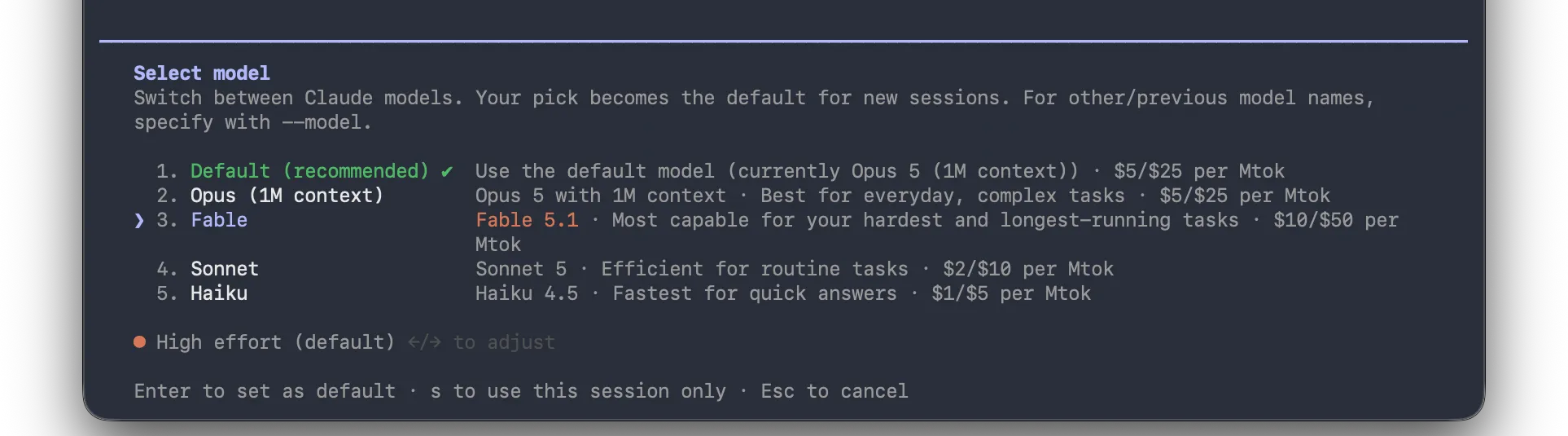
-
The switch is done once the display at the top shows
Fable 5.1.
Check which authentication is in use
Section titled “Check which authentication is in use”An API key takes priority over login credentials. While it is running, open /usage or /login to see which account and which authentication it is currently using.
Build your first thing
Section titled “Build your first thing”Write it at the prompt in plain language and press Enter.
Create an HTML file in this folder that just shows today's dateClaude creates the file, shows you the changes, and asks permission to run it. Approve it and the work continues. It always asks before changing a file, so nothing gets broken behind your back.
Once you get the hang of it, try asking for things like this.
Open the HTML you made in a browser and show meMake the background a gradient and add a clockCommands worth remembering
Section titled “Commands worth remembering”Once Claude Code is running, you can use commands that start with /. You do not need to memorize them all.
| Command | What it does |
|---|---|
/help | List the available commands |
/login | Log in again or switch accounts |
/usage | A rough figure for usage and cost in the current session |
/clear | Reset the conversation (when moving on to something else) |
/model | Switch the model in use |
/exit | Quit (Ctrl+D also works) |
For keyboard shortcuts, Shift+Tab switches permission modes and Escape interrupts whatever is running. If you feel it is heading in the wrong direction, do not hesitate to press Escape.
Next step
Section titled “Next step”That is the whole setup. To give you ideas for what to build on the day, we have prepared real prompts and the things they produced.
Showcase: prompts and results